Capture Cookbook Recipes

Your favorite cookbook recipes can now join ChefTalk's voice-guided cooking experience. The new photo import feature lets you capture recipe pages directly from physical cookbooks, transforming printed recipes into interactive, step-by-step guidance.
How It Works
The process takes about 30 seconds from photo to imported recipe.
Step 1: Start the Import
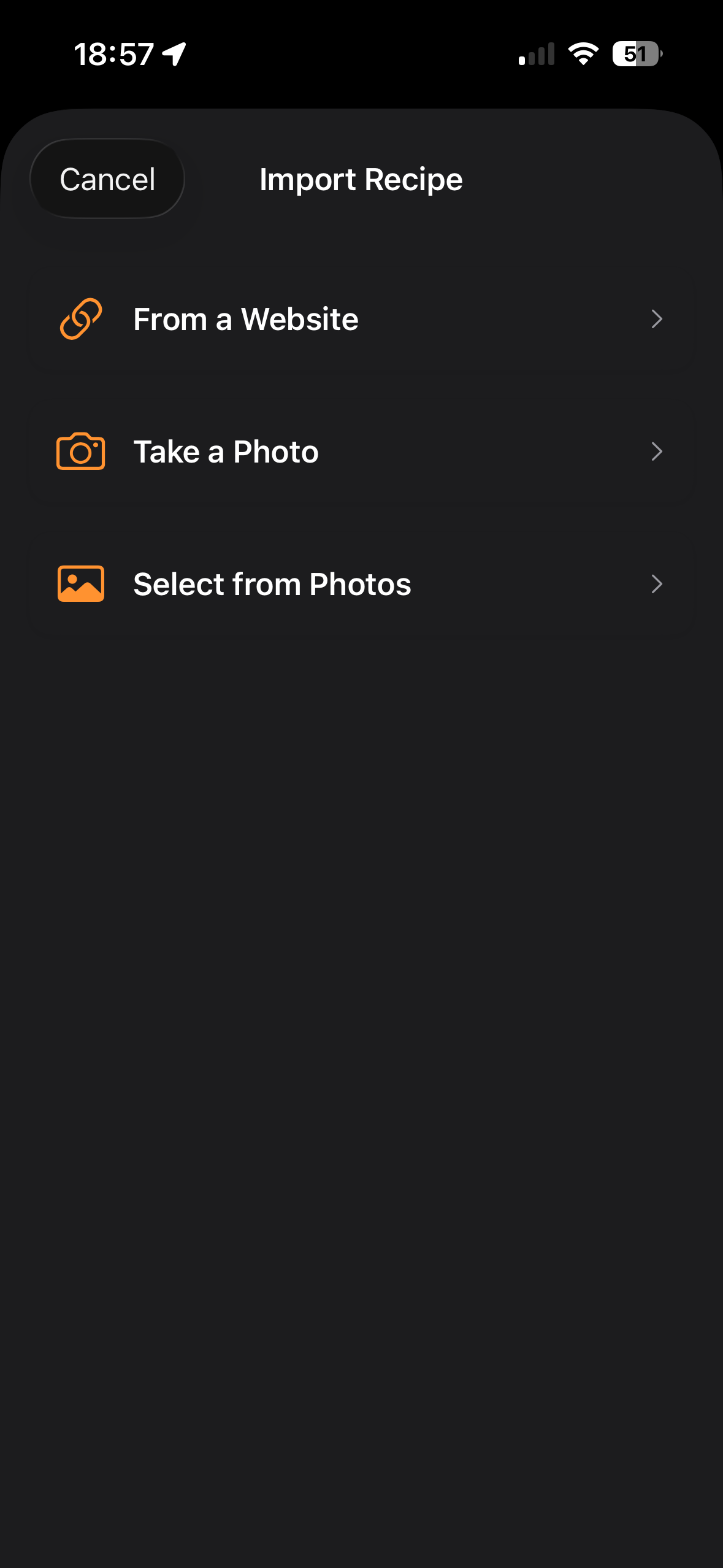
Open the Discover tab and tap the orange "Add Recipe" button. Select "Take a Photo" from the import options.
Step 2: Capture Your Recipe
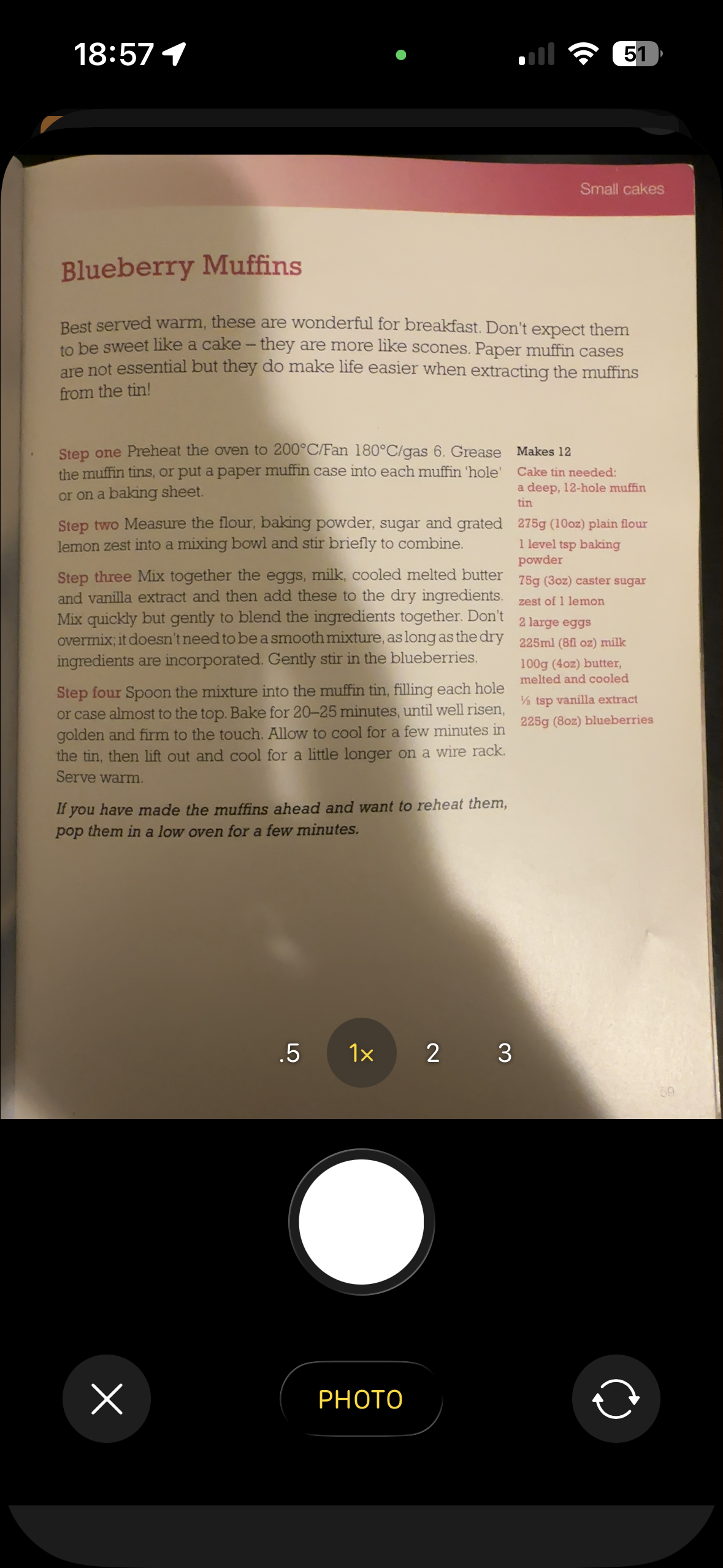
Point your camera at the recipe page. The app handles up to 5 photos for longer recipes, though most fit on a single page. Frame the recipe clearly and tap the capture button.
Step 3: Processing
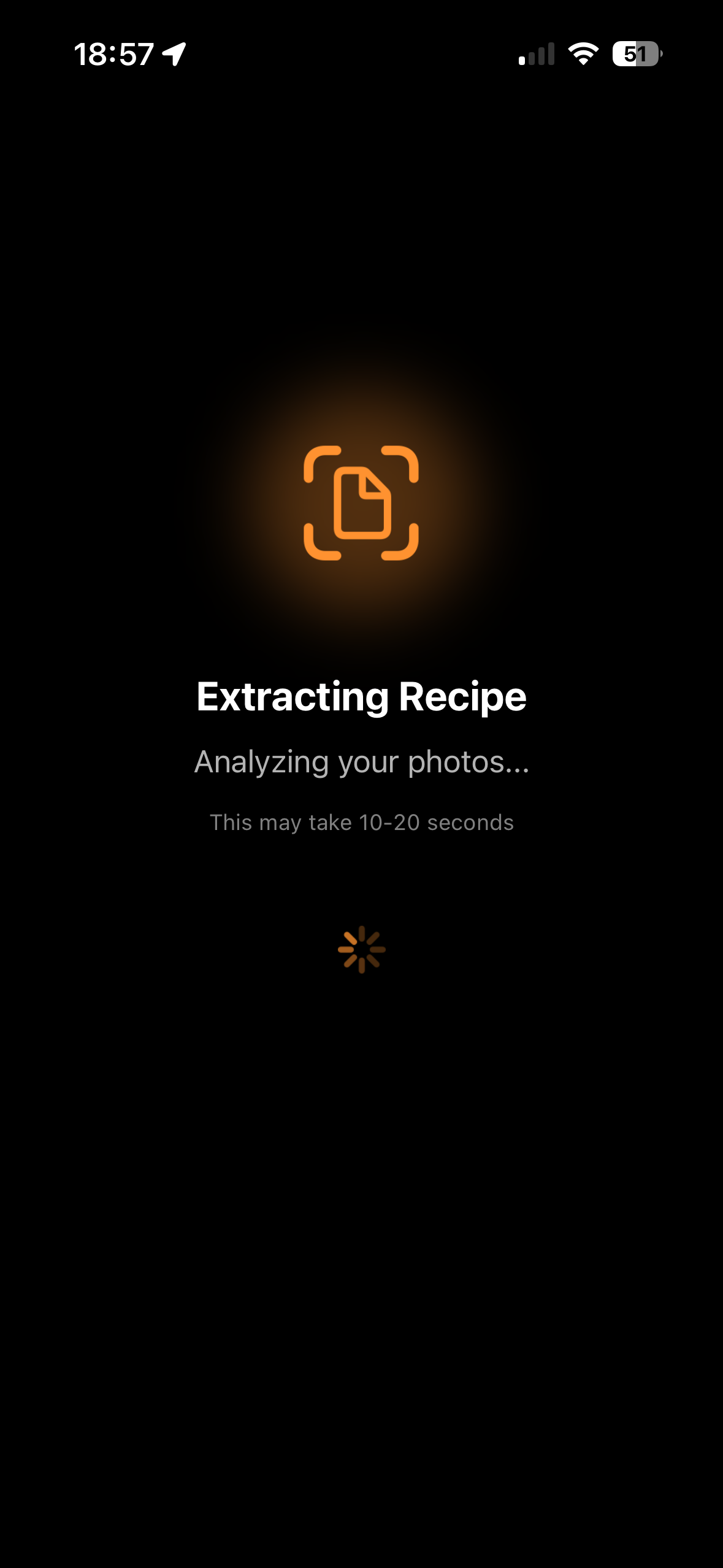
ChefTalk analyzes your photo and extracts the recipe details. This takes 10-20 seconds.
Step 4: Review and Import
The app shows you the extracted recipe with a confidence rating. Review the recipe name, ingredients, instructions, and timing. If everything looks correct, tap "Accept & Import Recipe.
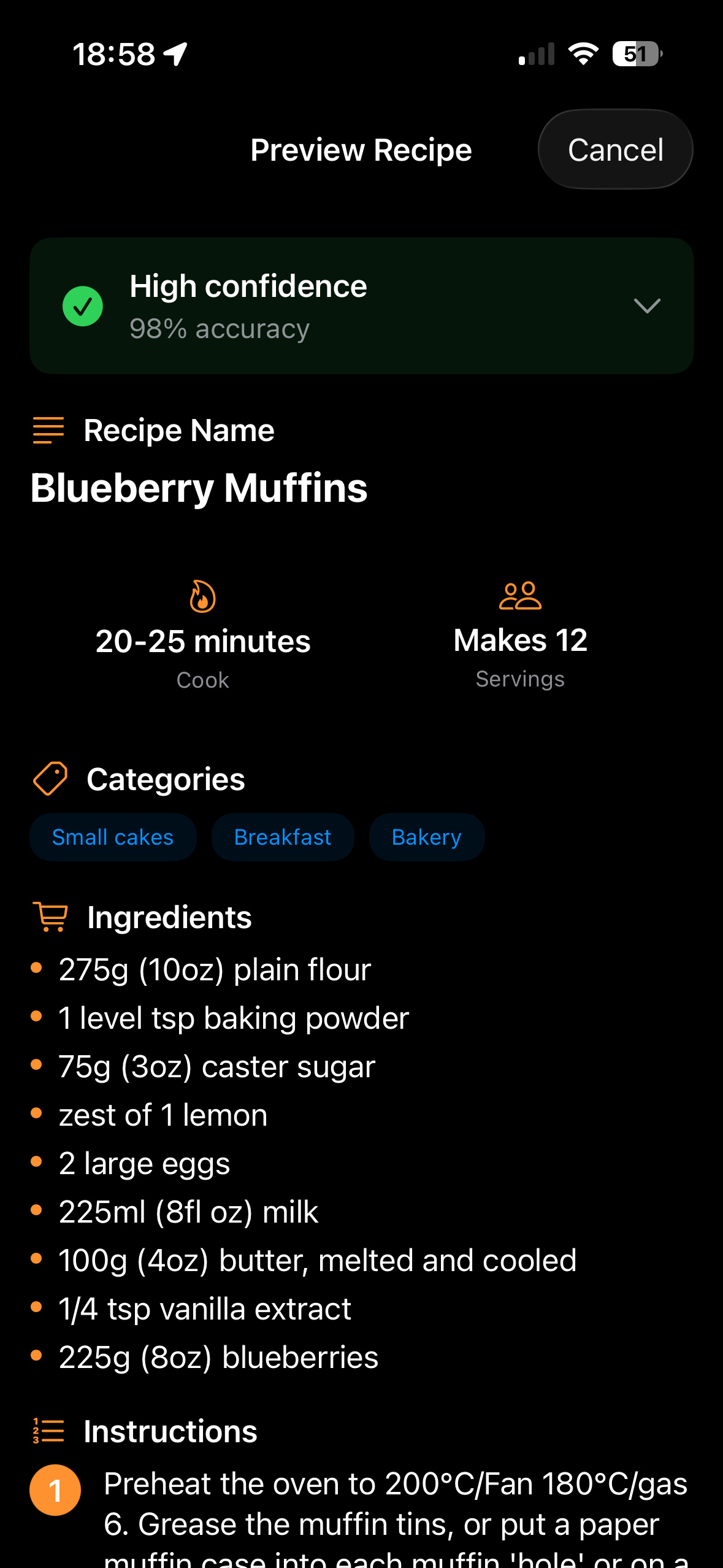
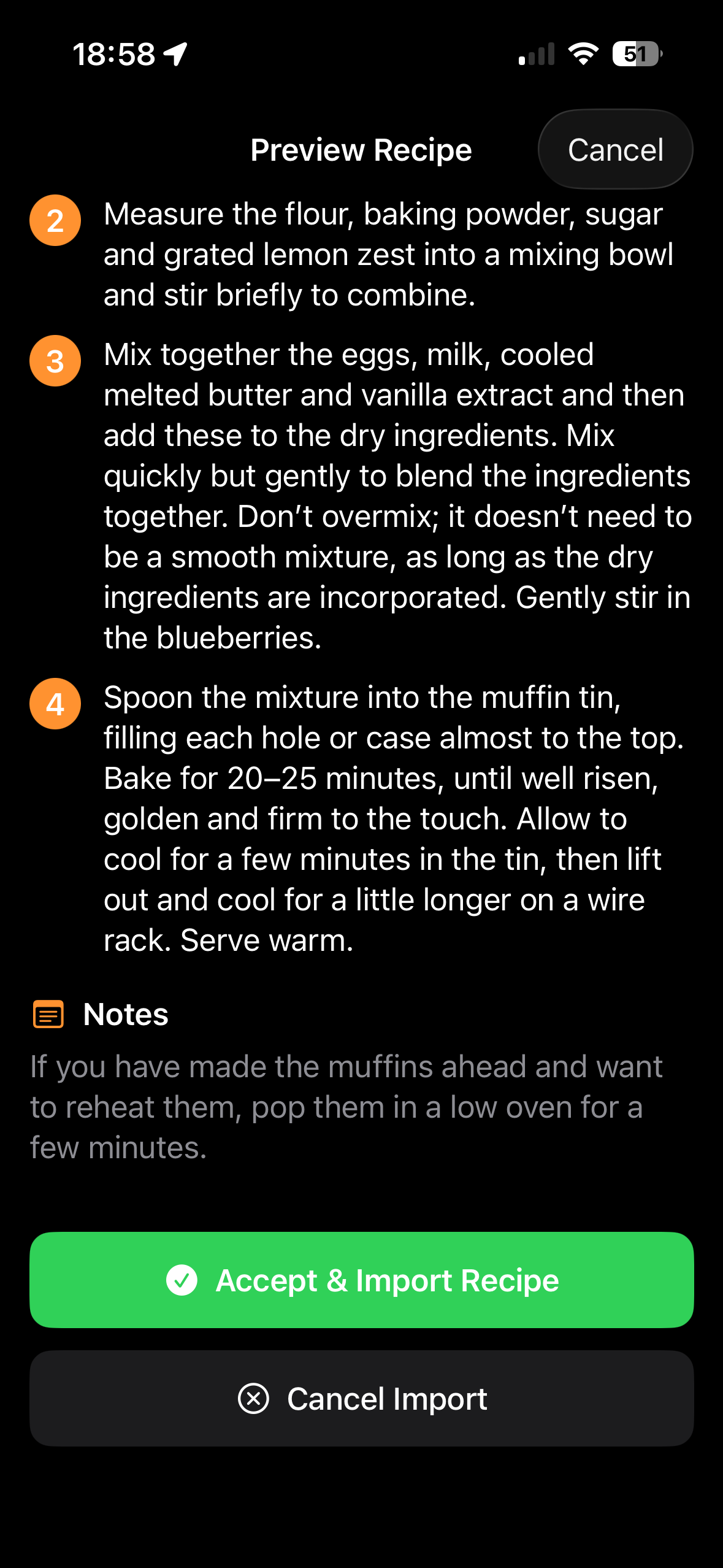
The recipe then enters your library ready for voice-guided cooking.
What Gets Captured
ChefTalk extracts:
- Recipe name and yield
- Complete ingredient lists with measurements
- Step-by-step instructions
- Cooking times and temperatures
- Recipe notes and tips
Technical Notes
The photo import uses image recognition to read printed text. It works with most cookbook layouts, though clear photos with good lighting produce the best results. The confidence indicator shows extraction accuracy before you commit to importing.
Try It Now
Photo recipe import is available in the current beta build. Open any cookbook, tap "Add Recipe," and bring your printed recipes into ChefTalk's voice-guided cooking system.
ChefTalk is currently in beta testing for iPhone and iPad. We're working with home cooks to refine features like photo import and voice-guided cooking.